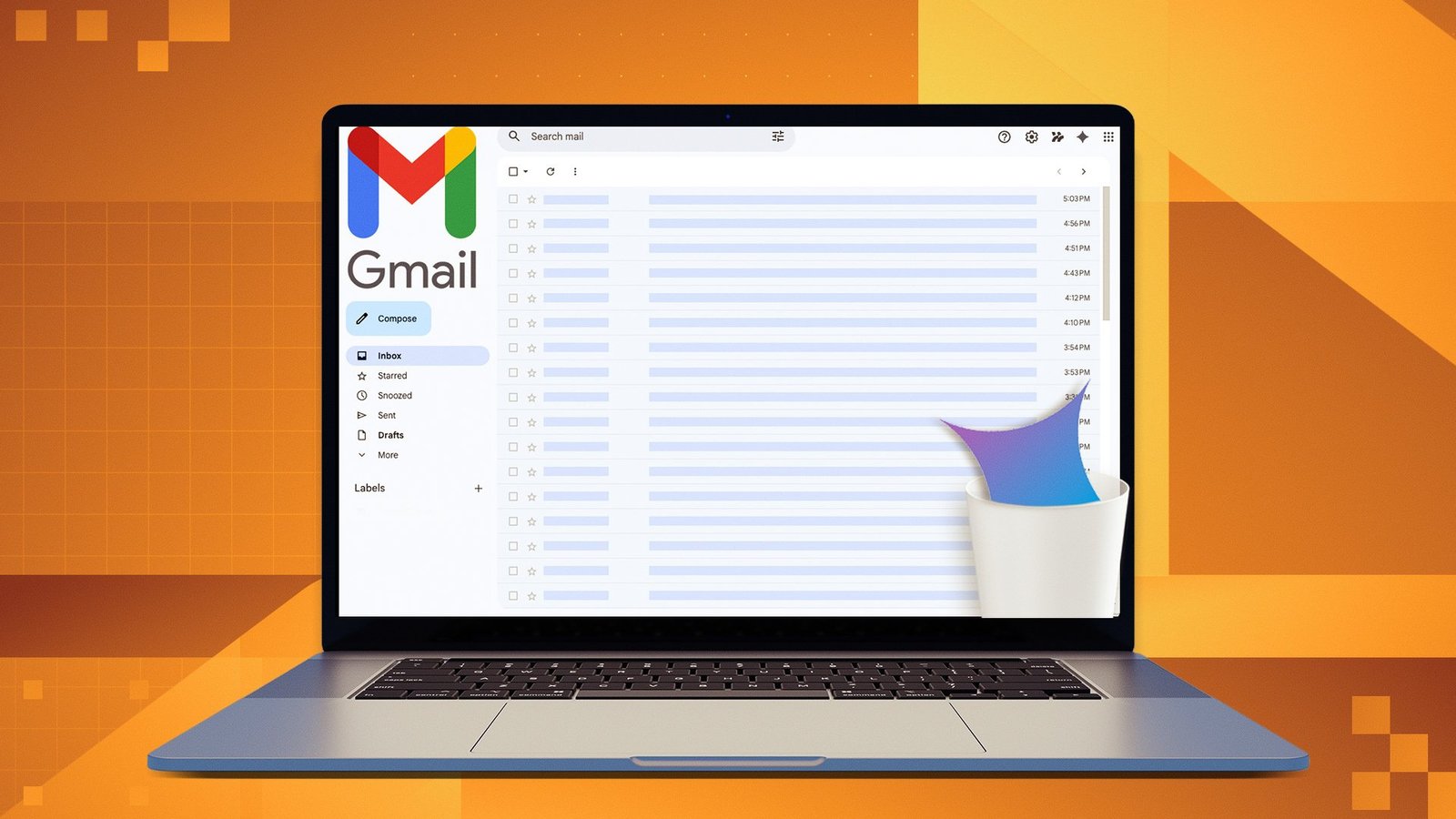
How to Remove Gemini AI Features from Gmail
Learn how to disable Gemini AI features like email summaries and smart compose in Gmail, while still keeping other useful features active.
How to Remove Gemini AI Features from Gmail
Google has integrated its Gemini AI technology into Gmail, adding features like email summaries and smart compose. Some users may find these features helpful, while others may prefer a more traditional Gmail experience. If you want to remove the Gemini AI features without turning off other Gmail functionalities, here's how.
Understanding Gemini AI in Gmail
Gemini AI integration in Gmail aims to enhance productivity by offering features like:
* **Email Summaries:** Automatically generated summaries of email threads to quickly grasp the main points. This is designed to save time for users dealing with long or complex email exchanges.
* **Smart Compose:** Predictive text suggestions as you type, which accelerates email writing and reduces errors. Smart Compose anticipates what you're going to write and suggests phrases or sentences.
However, these AI-powered features might not be for everyone. Some users might find the summaries inaccurate, the suggestions unhelpful, or they may simply prefer writing emails themselves. It's also possible some users have privacy concerns about AI processing their emails.
Disabling Specific Gemini AI Features
It's important to understand that you can't remove Gemini entirely from Gmail. The options allow you to disable specific features individually.
Turning off Email Summaries
If you find the email summaries distracting or unhelpful, you can disable them without affecting other Gmail features. This can be done within the Gmail settings. Unfortunately, the specific settings path can vary slightly depending on whether you are using the web interface or the mobile app, and how Google updates its interface. Look for settings related to "summaries" or "AI features".
Turning off Smart Compose
Smart Compose, while convenient for some, can be intrusive for others. You can disable this predictive text feature in your Gmail settings. This will prevent Gmail from suggesting words or phrases as you type, giving you full control over your writing. Again, the precise location of this setting may vary. Look for "Smart Compose" in the settings.
Impact of Disabling Gemini Features
By disabling these specific Gemini AI features, you can customize your Gmail experience to better suit your needs and preferences. You can regain control over how you interact with your emails, potentially increasing your focus and reducing distractions. Importantly, disabling these features does not remove other beneficial Gmail functionalities, such as spam filtering, search, and organizational tools.
Considerations
It's worth noting that Google regularly updates Gmail and its AI integrations. This means the methods for disabling these features may change in the future. Keep an eye on Gmail's settings and help documentation for the latest information. Also, consider whether you might benefit from experimenting with the features periodically, as Google may improve their accuracy and usefulness over time. The decision to use or disable Gemini AI features in Gmail is a personal one.